Summer is hard on PCs. Months of heat, dust, and heavy gaming or work sessions leave fans clogged, thermal paste dried out, and storage bloated. By early August, even a fast build can start feeling sluggish, loud, or hot. The good news: most of that lost performance is reversible with a focused tune-up. Here's the checklist we use at Keystone Labs to get builds ready for fall.
Clean the Dust First
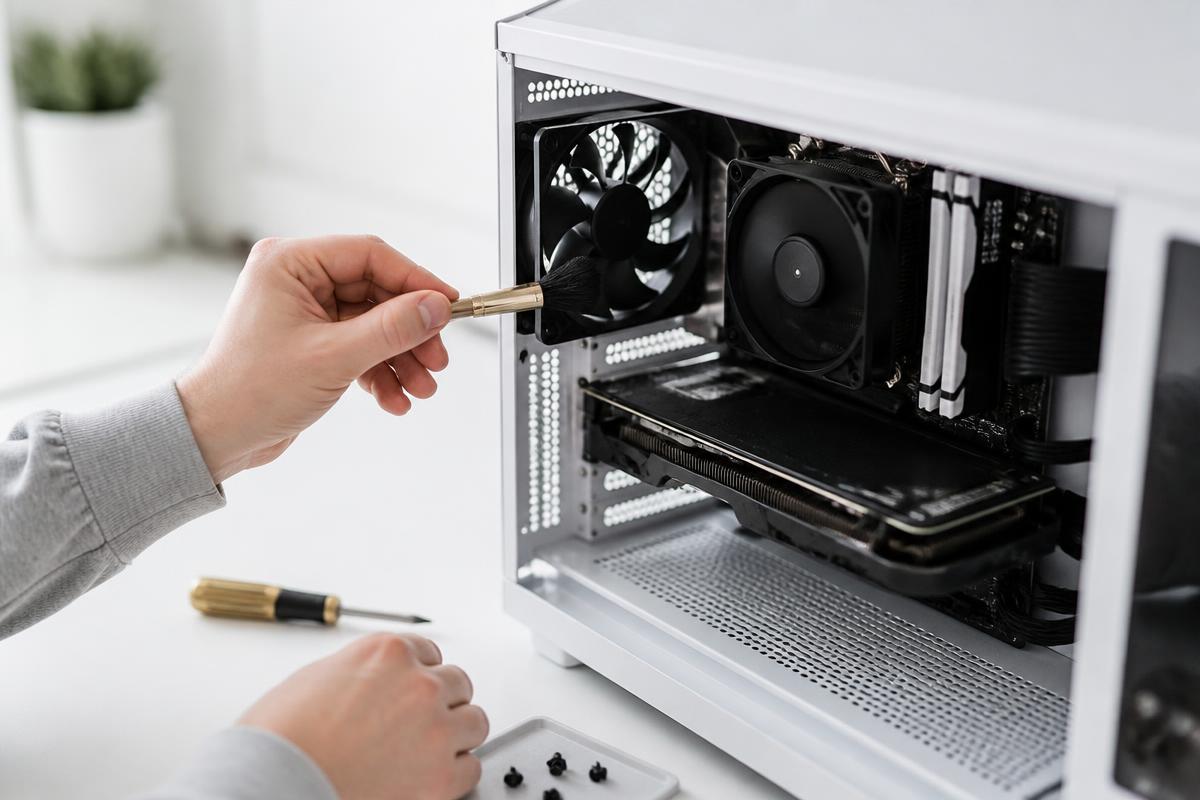
Dust is the single biggest silent performance killer. It insulates components, blocks airflow, and forces fans to spin faster and louder. Before doing anything else:
- Power off and unplug the PC
- Open the side panel in a well-ventilated area
- Use compressed air to blow out fans, heatsinks, and filters
- Hold fan blades still while cleaning so you don't overspin the bearings
- Wipe down mesh panels and dust filters with a microfiber cloth
If your case has been sitting on carpet or near pets, expect to find a surprising amount of buildup. A clean PC often runs 5–10°C cooler immediately.
Check Thermal Paste and Cooler Mounting
Thermal paste dries out over time, especially after hot summers. If your CPU temps have climbed or your fans sound constantly stressed, reapplying paste is worth the 20 minutes:
- Remove the cooler and clean the old paste with isopropyl alcohol
- Apply a pea-sized dot of fresh thermal paste
- Remount with even pressure
- Verify the cooler is firmly seated and not wobbling
Quality paste like Thermal Grizzly Kryonaut, Noctua NT-H2, or Arctic MX-6 typically lasts 2–3 years under normal use. If you've never done it and your PC is over two years old, now is the time.
Audit Startup Programs and Background Apps
A slow-feeling PC is often a software problem, not a hardware one. Open Task Manager or Settings and review what launches at startup:
- Disable apps you don't need immediately on boot
- Uninstall bloatware or old utilities you no longer use
- Check browser extensions, especially ones added without your knowledge
- Run a malware scan if performance dropped suddenly
Freeing up startup overhead can make a bigger daily difference than a minor hardware upgrade.
Free Up Storage and Check Drive Health
A nearly full SSD slows down dramatically. Try to keep at least 15–20% of your main drive free. While you're at it:
- Empty the recycle bin and clear temporary files
- Move large games or media to a secondary drive
- Check SSD health in your motherboard software or a tool like CrystalDiskInfo
- Defragment only mechanical hard drives, never SSDs
If your boot drive is older than five years or showing wear indicators, back it up and consider replacing it before it fails.
Update Drivers, BIOS, and Windows
Outdated software causes crashes, compatibility issues, and missed performance improvements. August is a good checkpoint to:
- Install the latest GPU drivers
- Update chipset and motherboard drivers
- Apply pending Windows updates
- Check for BIOS updates if you're having stability issues
Just don't update BIOS on a whim — only do it if the release notes address a specific problem you have.
When to Bring It In
If you've cleaned, updated, and checked everything and the PC is still slow, hot, or unstable, there's likely a deeper issue. Failing power supplies, degrading RAM, dying drives, and motherboard problems can all masquerade as general slowness. A diagnostic appointment at Keystone Labs can help narrow the cause and establish practical repair or replacement options. Nick confirms the scope, quote and timing.
Get your build back to full strength before fall. Book a tune-up or stop by our East McKeesport shop and we'll handle the dirty work for you.